Booking Engine Customization
The Verabooking Admin Portal provides settings to customize the customer-facing booking engine to match your hotel's brand and improve the guest experience.
Hotel Identity & Contact Information
Your hotel's primary details appear across the booking engine and post-booking communications.
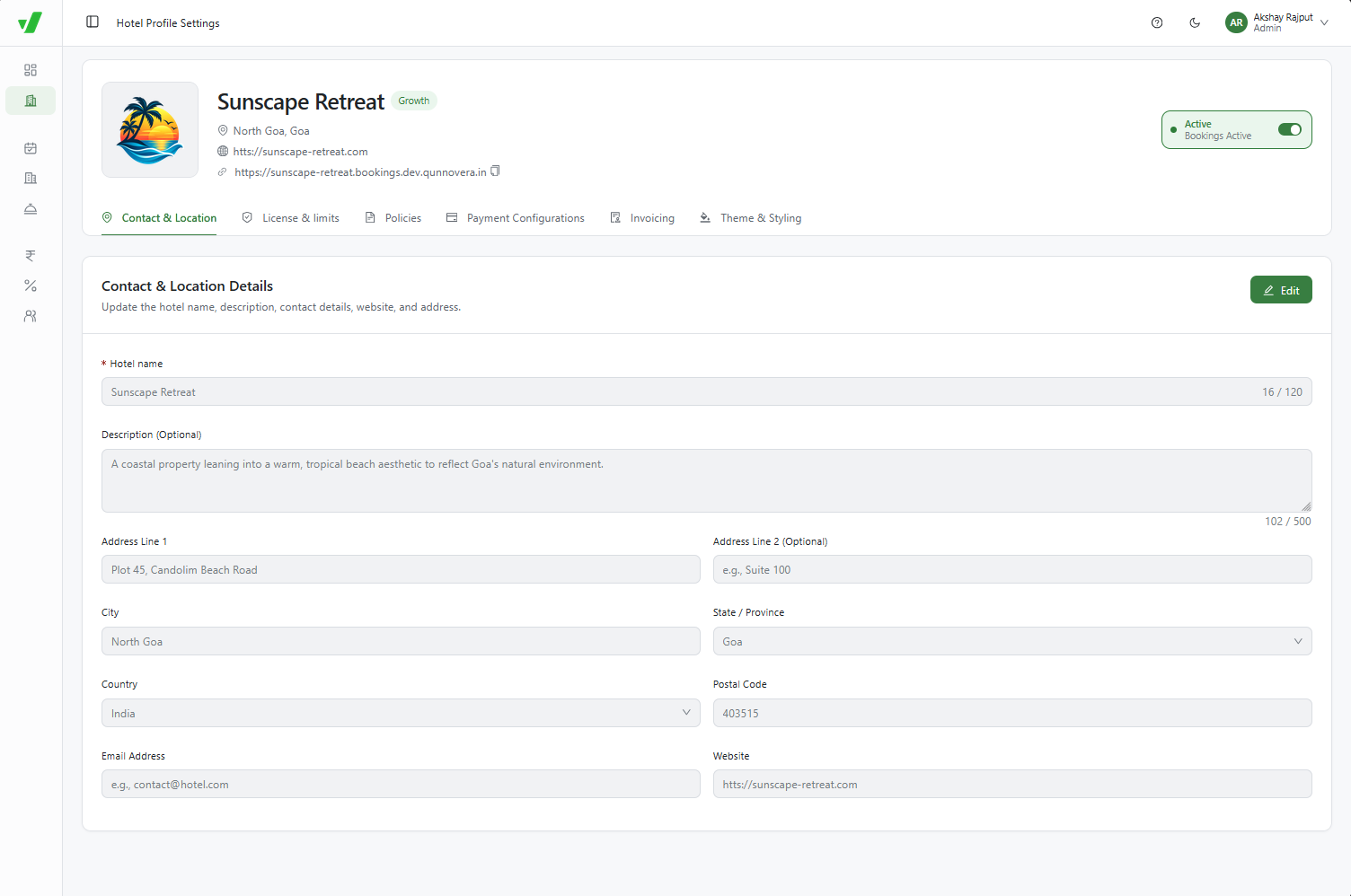
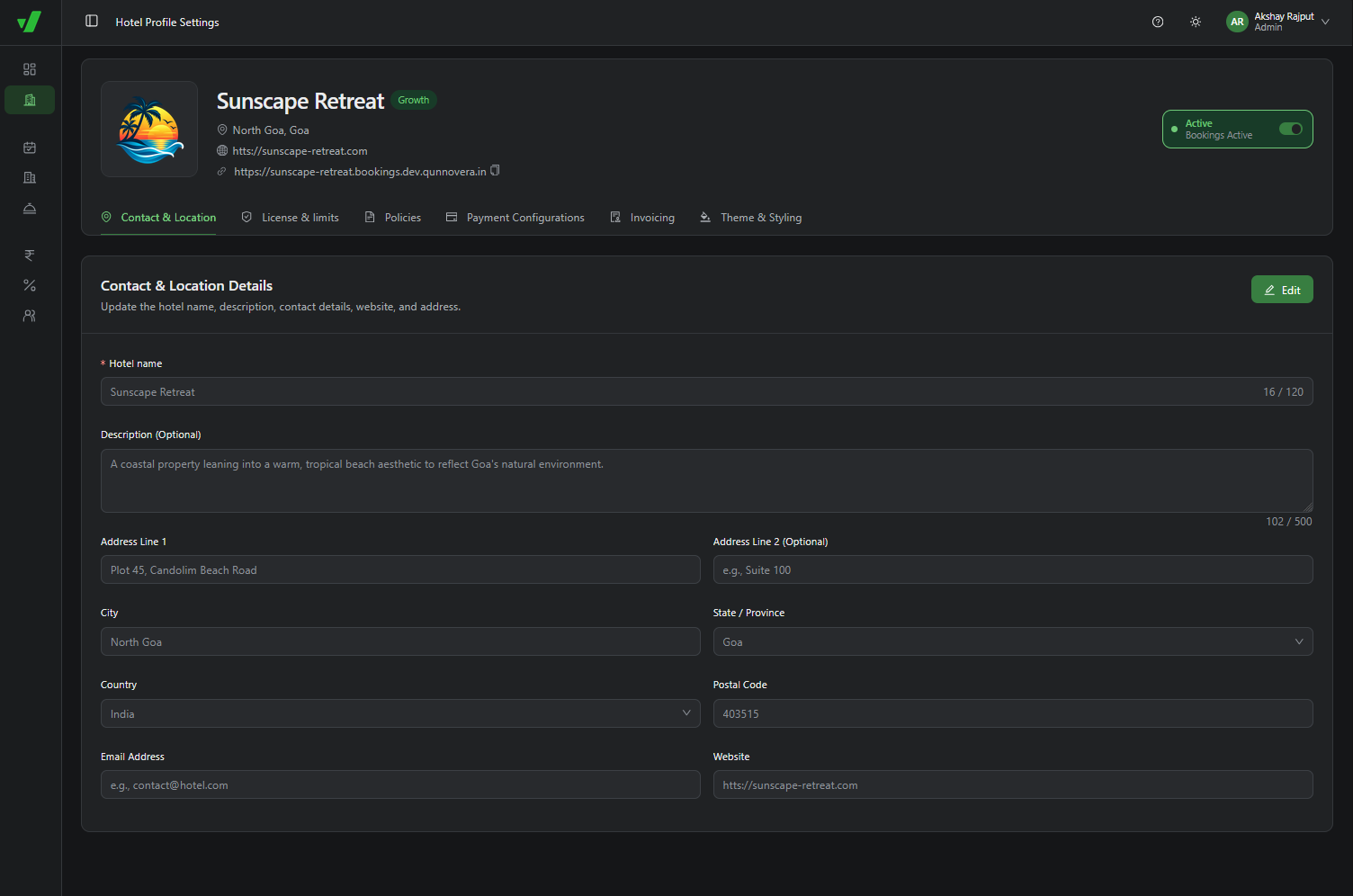
- Navigate to Hotel Profile and select the Contact & Location tab.
- Hotel Name & Logo: Set the official property name (up to 120 characters) and upload your primary hotel logo. Both appear at the top of the booking site.
- Location Details: Configure Address Line 1 and 2, City, State/Province, Country, and Postal Code.
- Contact Information: Add your property's Email Address and official Website link.
- Invoice Integration: The address, email address, and phone number configured here are used on operational and guest invoices.
Theme & Styling
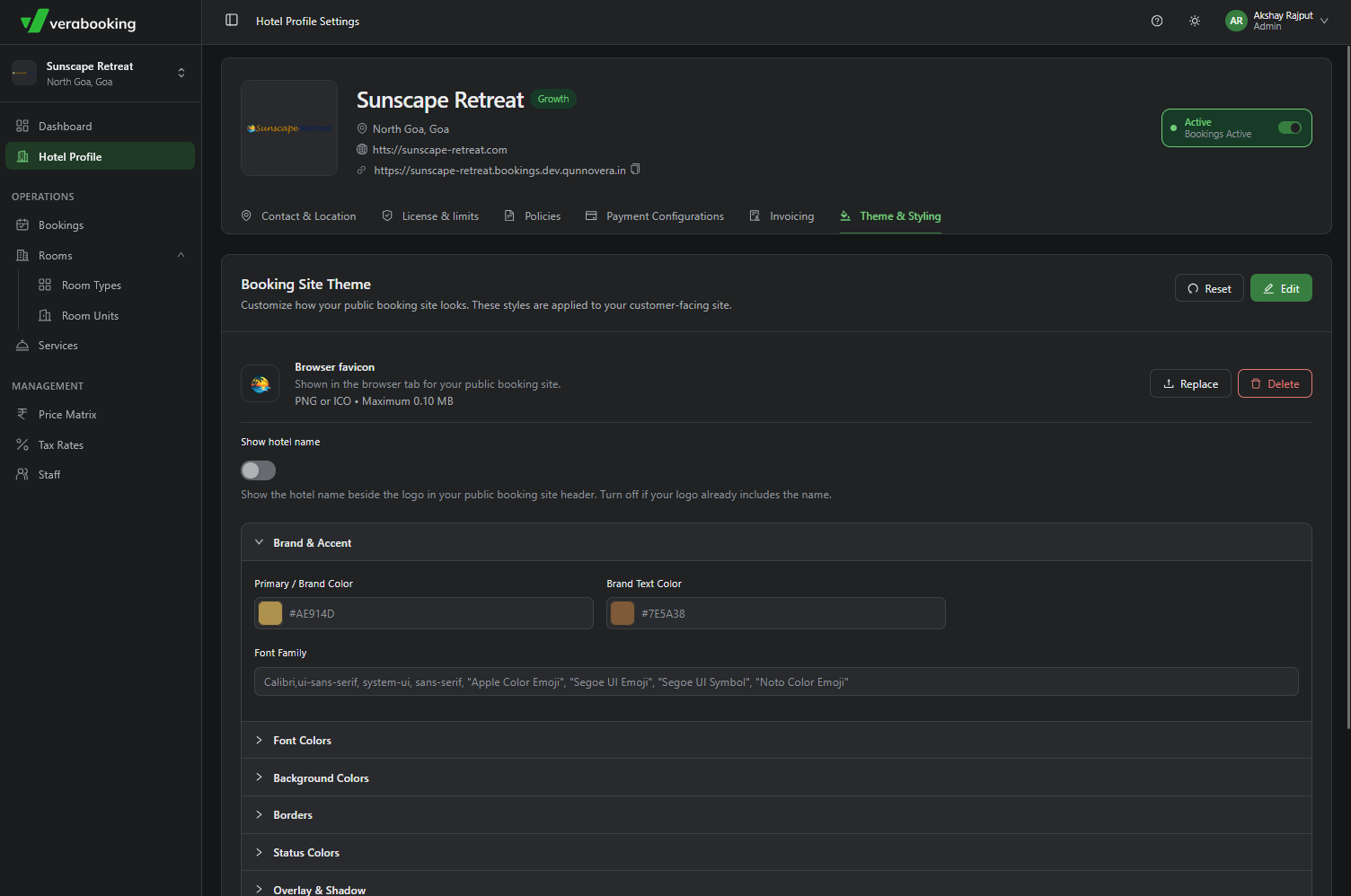
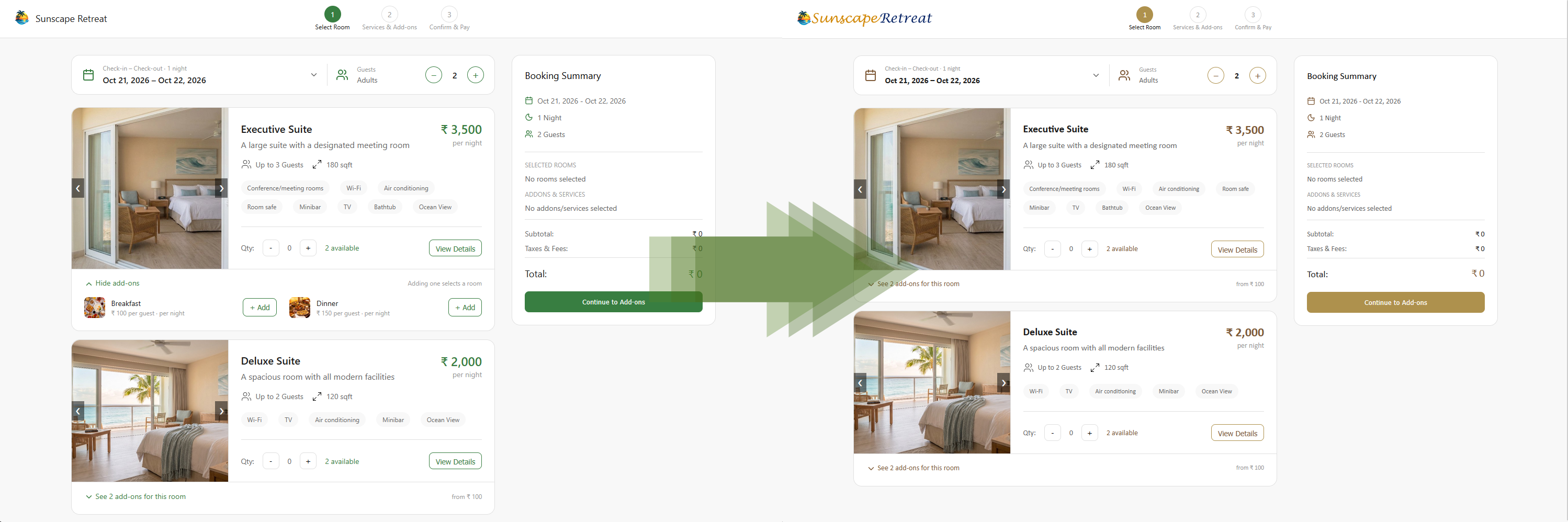
The Theme & Styling section lets you match the booking client to your hotel's brand guidelines.
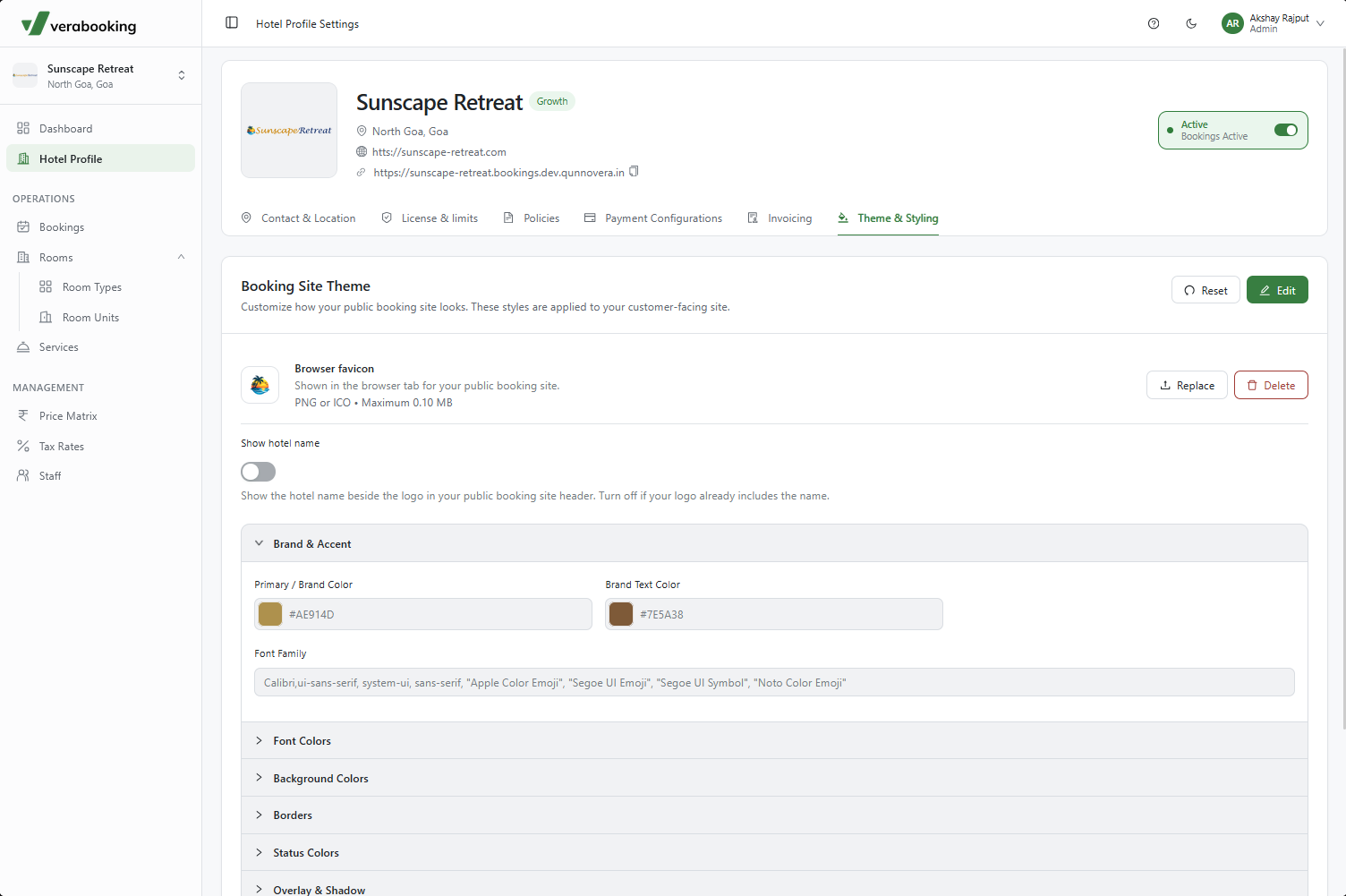
- Browser Favicon: Upload the small icon displayed on the guest's browser tab.
- Design Elements: Customize primary brand colors, text colors, font family, backgrounds, line heights, and spacing.
- Reset Option: Click Reset at the top of the section to return to the default theme.
Policies & External Links
The Policies section lets you add links to independently hosted pages, such as your Privacy Policy, Home and Cancellation Policies, Contact Us page, and Terms and Conditions.
- Each hotel can add up to 5 external policy links.
- Click Edit, then + Add link to add a page. Use the trash can icons to remove links and Save Links to save your changes.
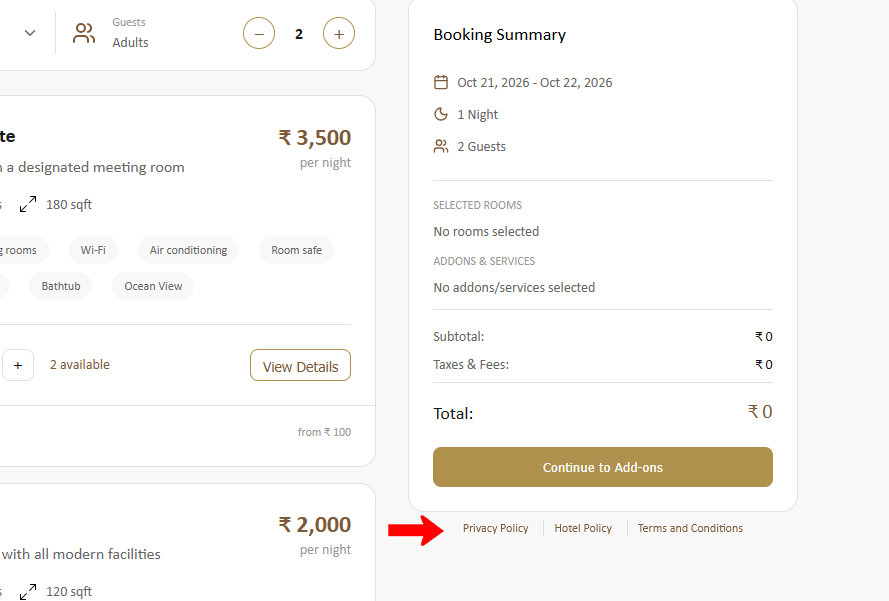
- Once configured, the links appear at the bottom-right of the Booking Summary section in the customer-facing booking engine.