Tax Rates
Tax & Charges Management
The Tax & Charges Management section controls how taxes, fees, and extra charges apply to your hotel's reservations. Because room prices can change through the Price Matrix, tax calculations adjust to the active rate of the room or service.
You can configure standard GST, payment processing surcharges, or taxes on premium offerings.
Key Capabilities
- Dynamic Price-Based Taxing: Set conditions that change the tax rate based on the transaction price of a room or service.
- Flexible Charge Types: Add percentage-based taxes, such as 18% GST, or flat fees, such as a Rs 500 environmental fee.
- Future-Proofing: Set an Effective From date to prepare rules for future tax changes.
- Targeted Application: Apply charges to Rooms, Services, or specific room types and service categories.
- Rule Prioritization: Order overlapping rules so the correct tax is applied.
Common Configuration Scenarios
| Scenario | Charge Type | Example Configuration |
|---|---|---|
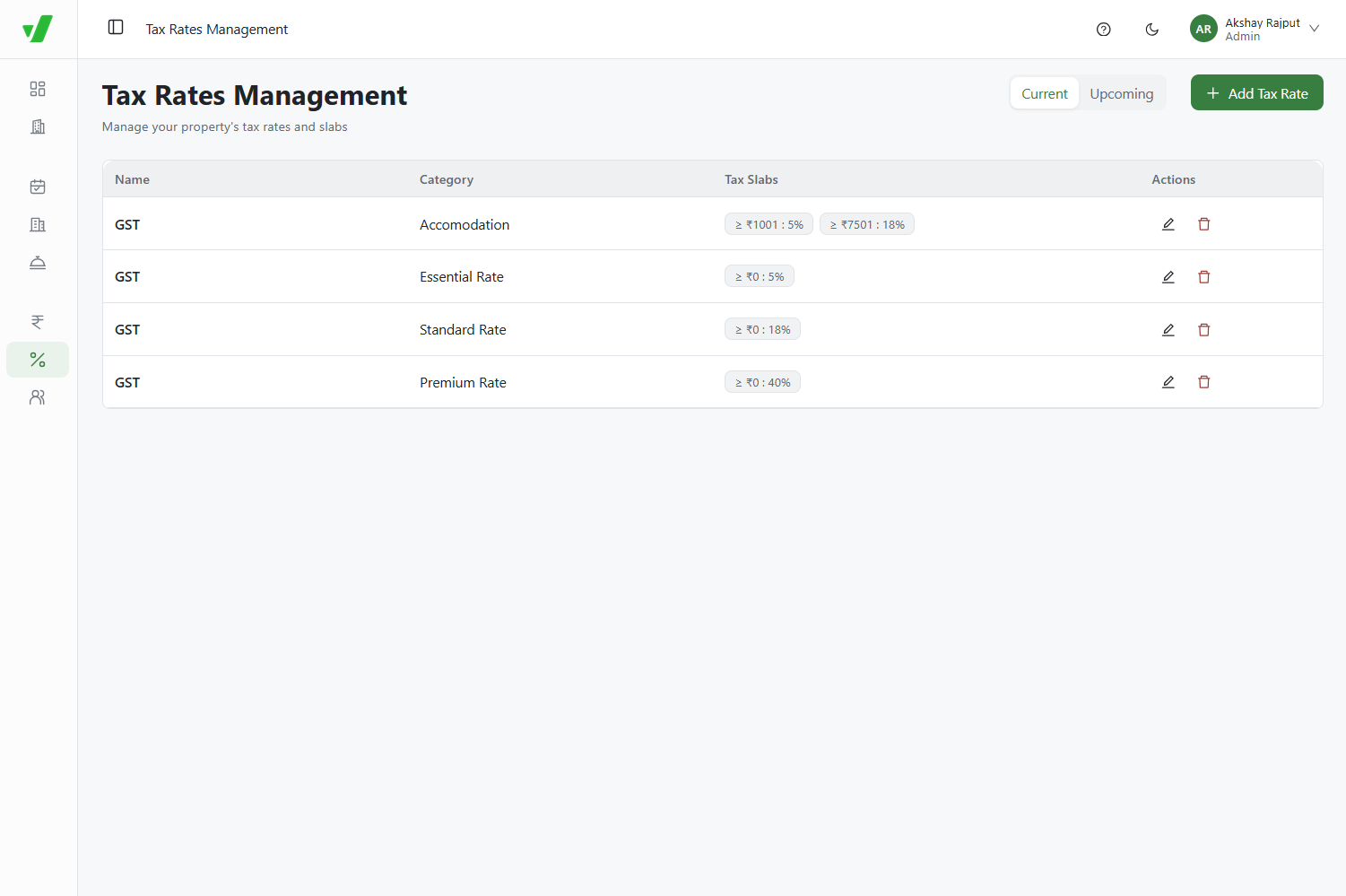
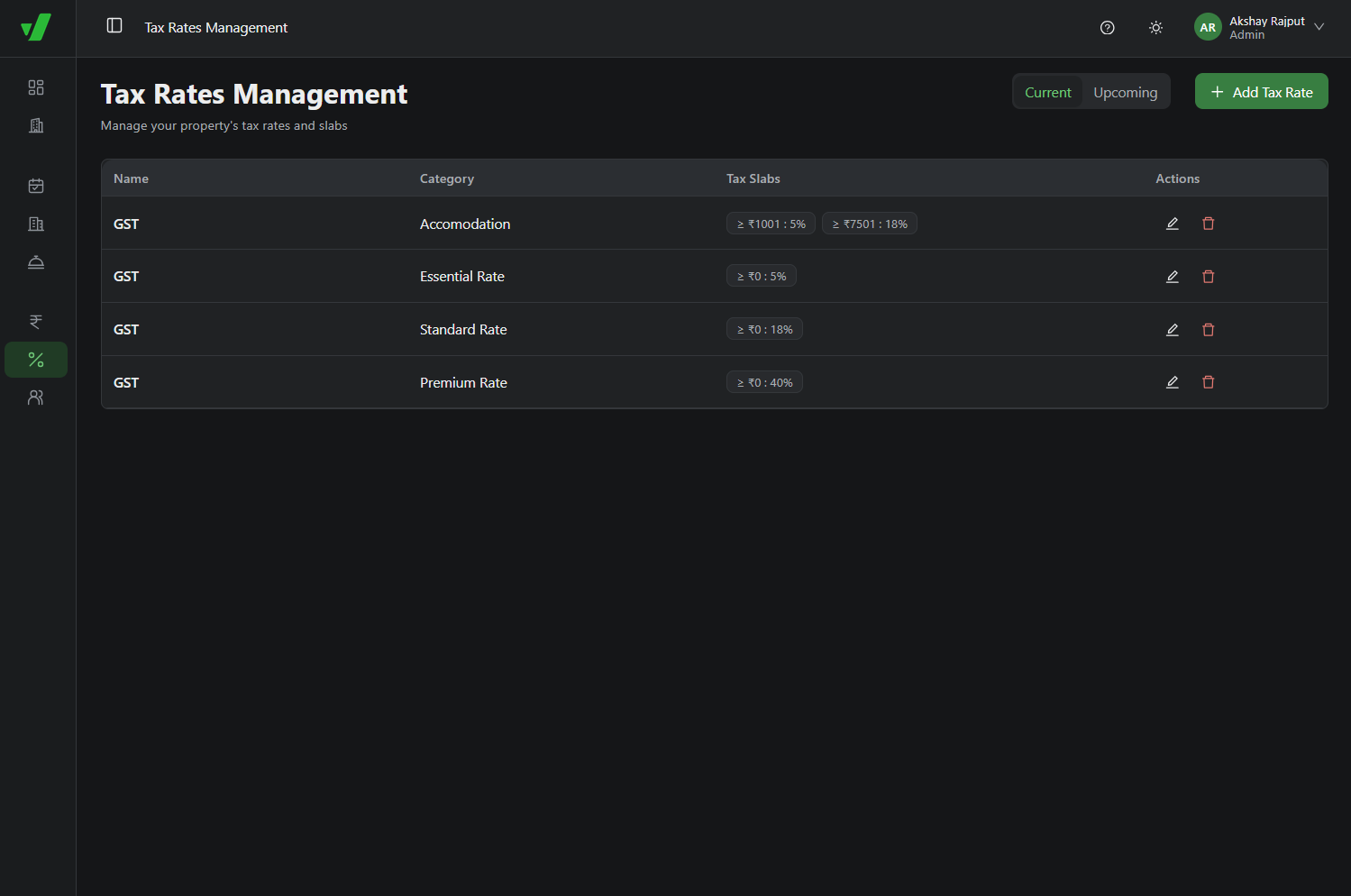
| Standard Room Tax | Percentage | 18% GST applied when the room price is above a certain threshold. |
| Premium Service Tax | Percentage | 40% GST applied to Premium Services, such as high-end spa packages. |
| Payment Gateway Fee | Percentage | 2% surcharge to cover transaction processing costs. |
| Dynamic Slab Adjustment | Percentage | 5% GST applied if a discount drops the nightly room rate into a lower tax bracket. |
How to Create a New Tax or Charge
- Navigate to Tax Rates in the Admin Portal.
- Click Add Tax/Charge.
- Enter a clear Name, such as "18% GST on Luxury Rooms" or "PG Surcharge".
- Choose a Charge Type: Flat amount or Percentage.
- Enter the Value for that type, such as 18 for 18% or 2 for 2%.
- Set the Effective From date.
- Configure the Conditions that determine when the tax applies, such as Item Type = Room and Price > 7500.
- Set the Status to Active and save.
Important: If a room's price changes because of a Price Matrix rule or discount, conditional tax rules use the new price to apply the matching tax slab.
Managing Rule Priority
When multiple tax rules overlap, you can change their order to determine which calculation takes precedence.
- Open the main Tax Rates list.
- Find the drag handle next to a rule.
- Drag and drop the rows to change their hierarchy according to your configured logic.
- Save the new order.
This lets specific rules take precedence over broader fallback rules.