Create and Manage Your First Booking
This guide takes you from a new booking request through checkout. You'll choose rooms, prepare a quote, confirm the stay, check guests in, record payments, and make the rooms available again afterward.
Before you begin, add your room types and units and check their rates in the Price Matrix. If you offer extras, set up room add-ons and standalone services. To let guests confirm by paying online, connect your payment gateway.
Build the booking
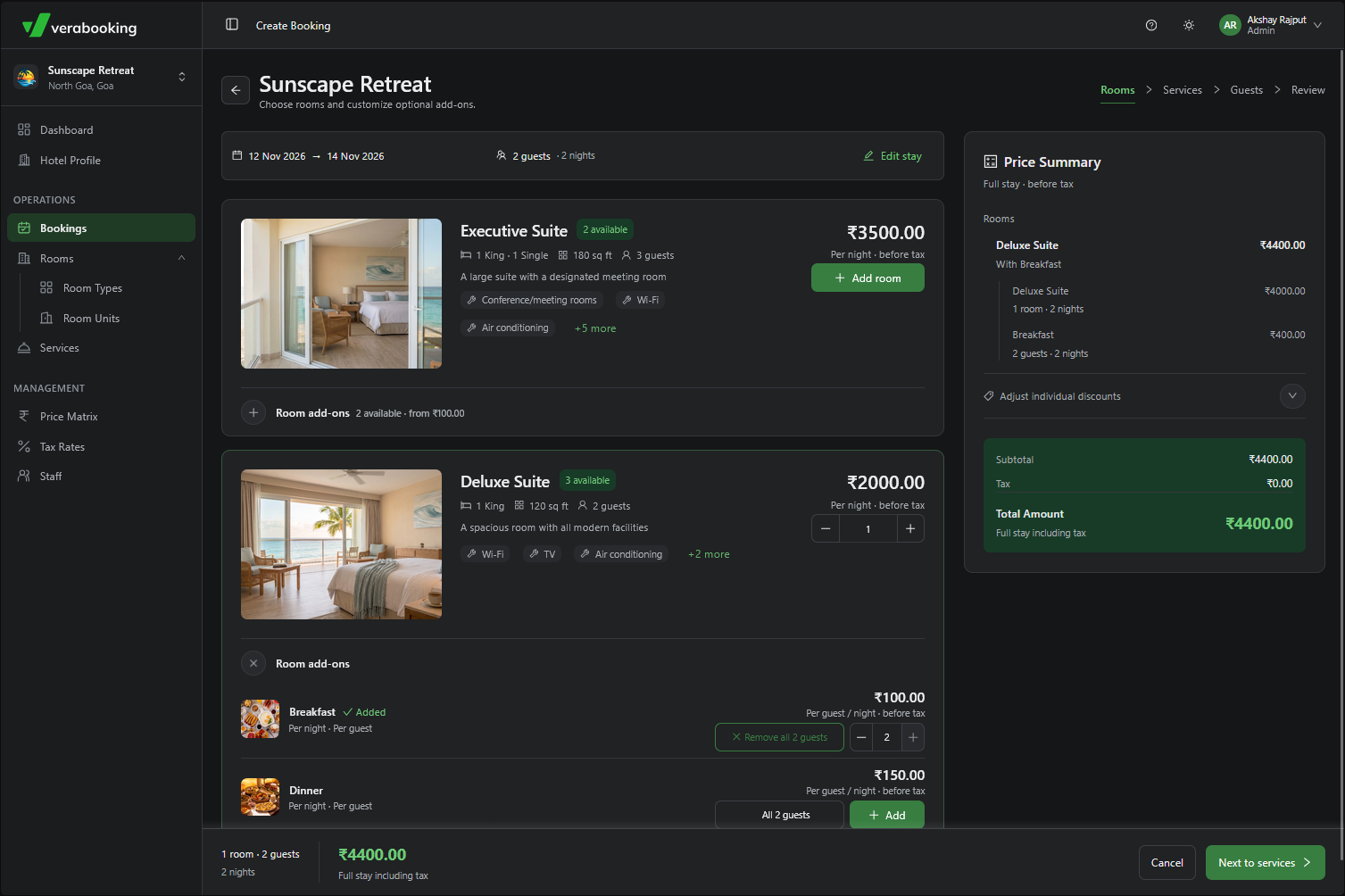
In the Bookings dashboard, select New Booking. Choose the stay dates and number of guests. Verabooking shows the rooms available for those dates and their average daily prices from the Price Matrix. Select enough rooms for the group.
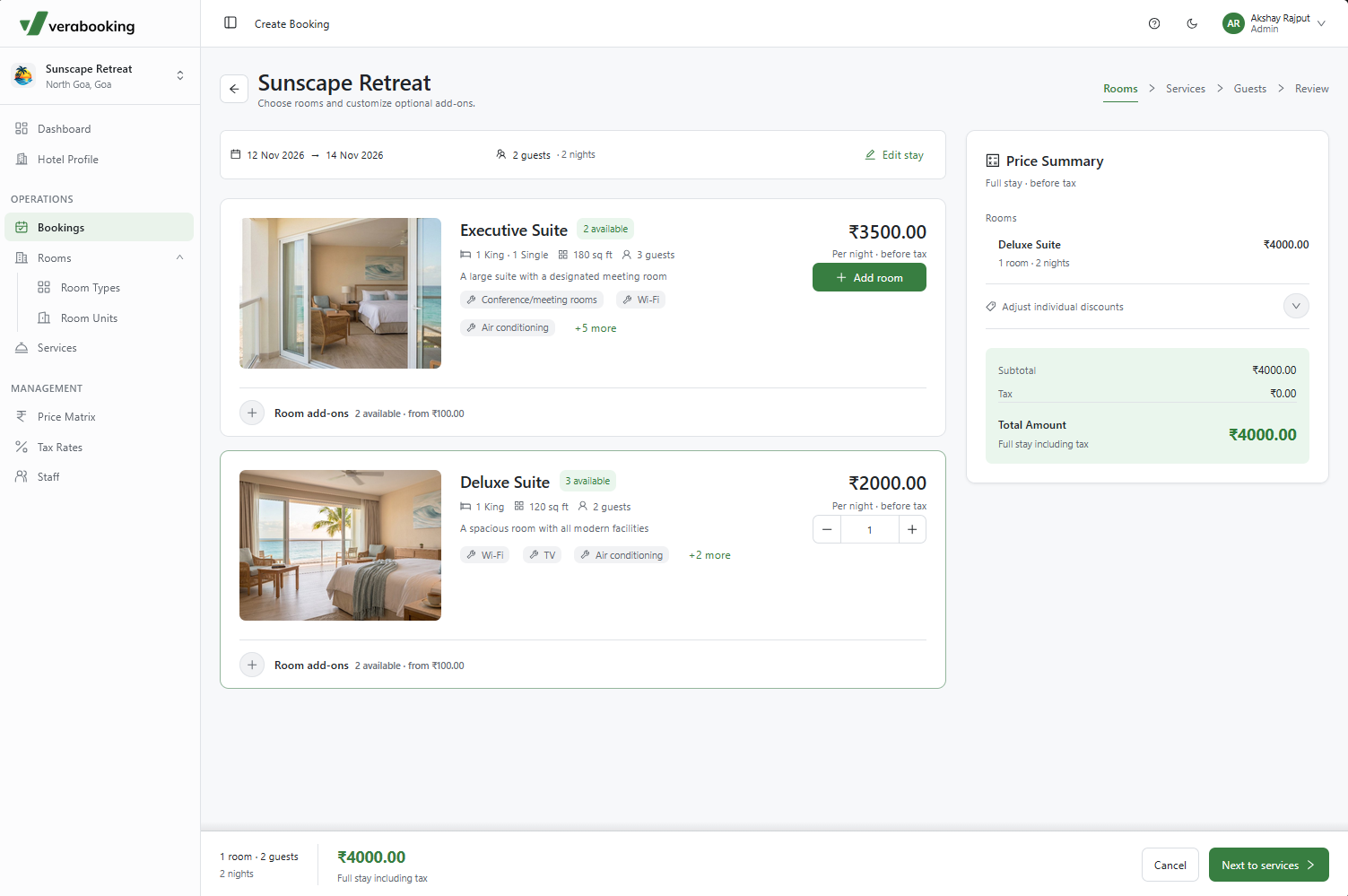
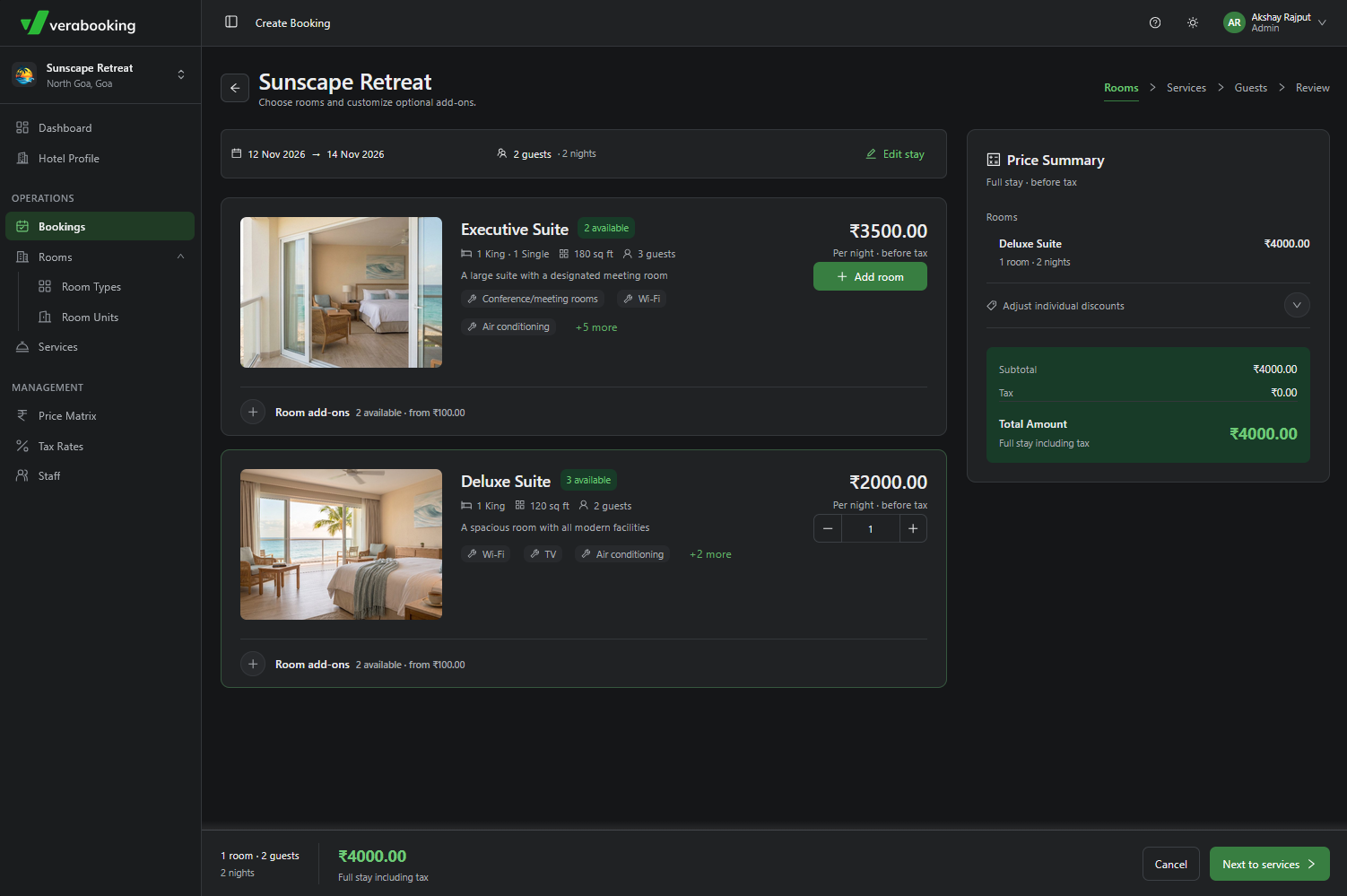
If the guest wants extras, add them as you move through the booking flow:
- Use Add on to include a configured room add-on, such as breakfast.
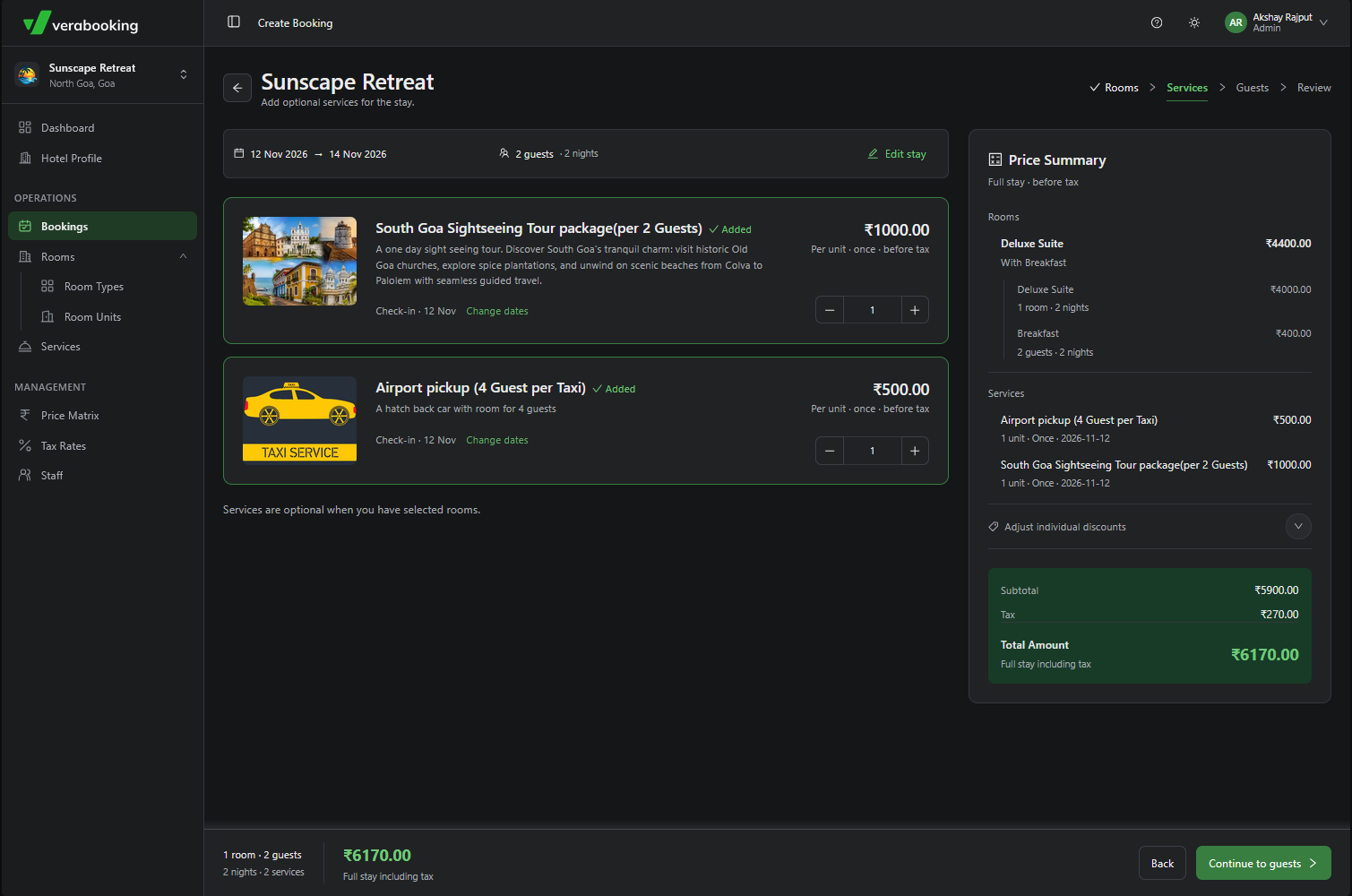
- Select Next to Services to add any configured standalone services, such as an airport transfer.
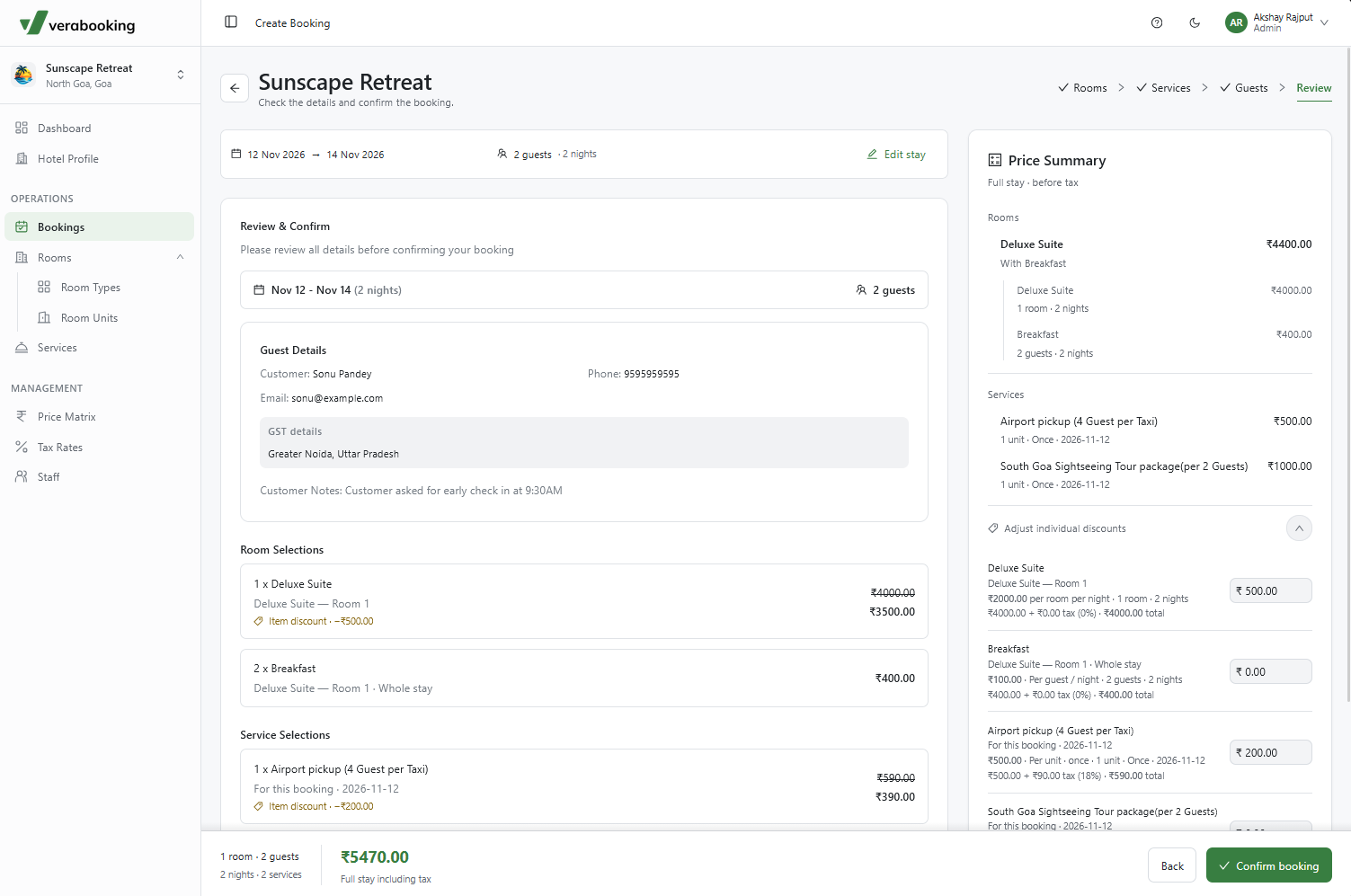
- In the price summary, use Adjust individual discounts if you have agreed on a custom discount. Check the updated total before continuing.
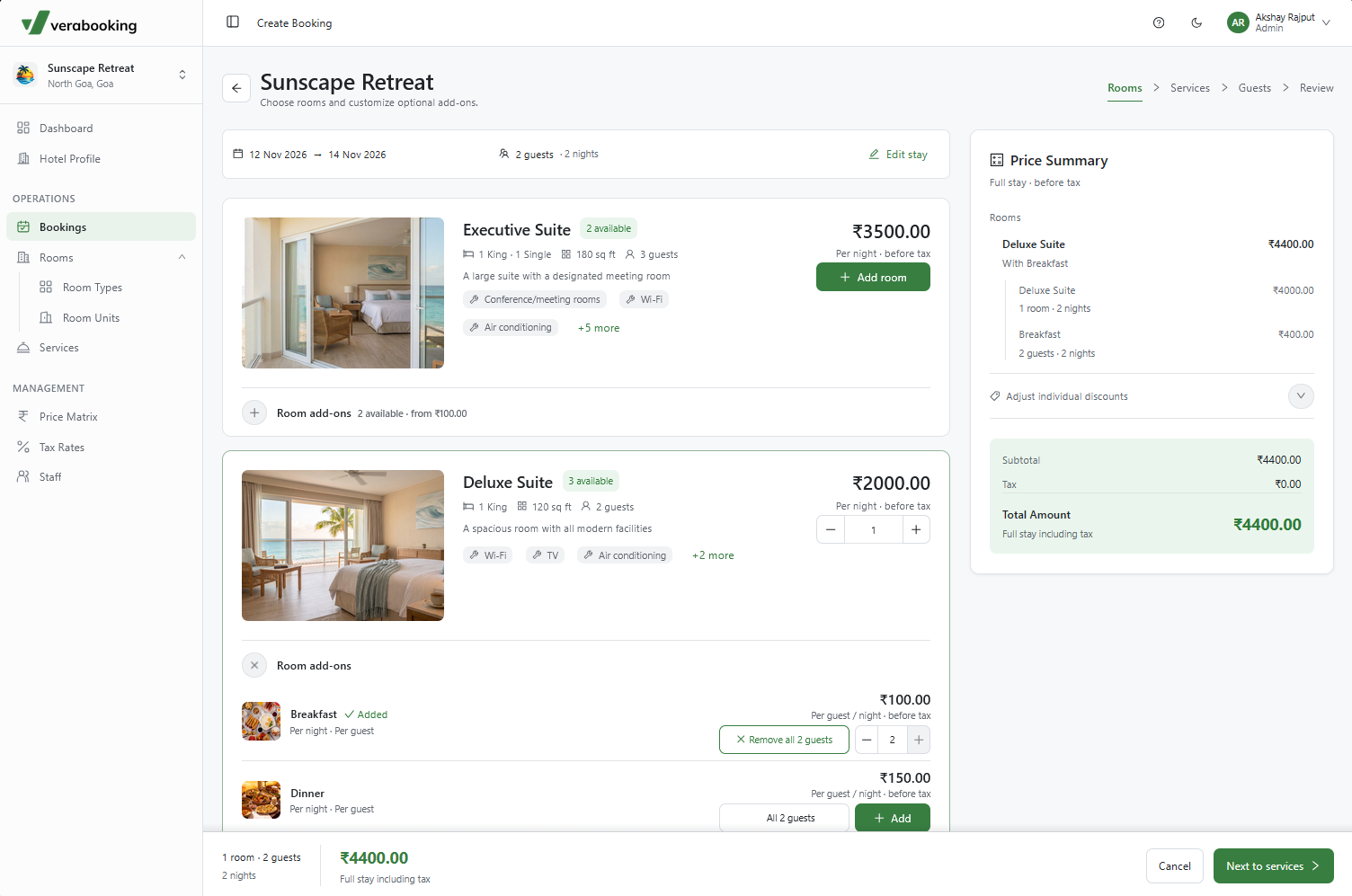
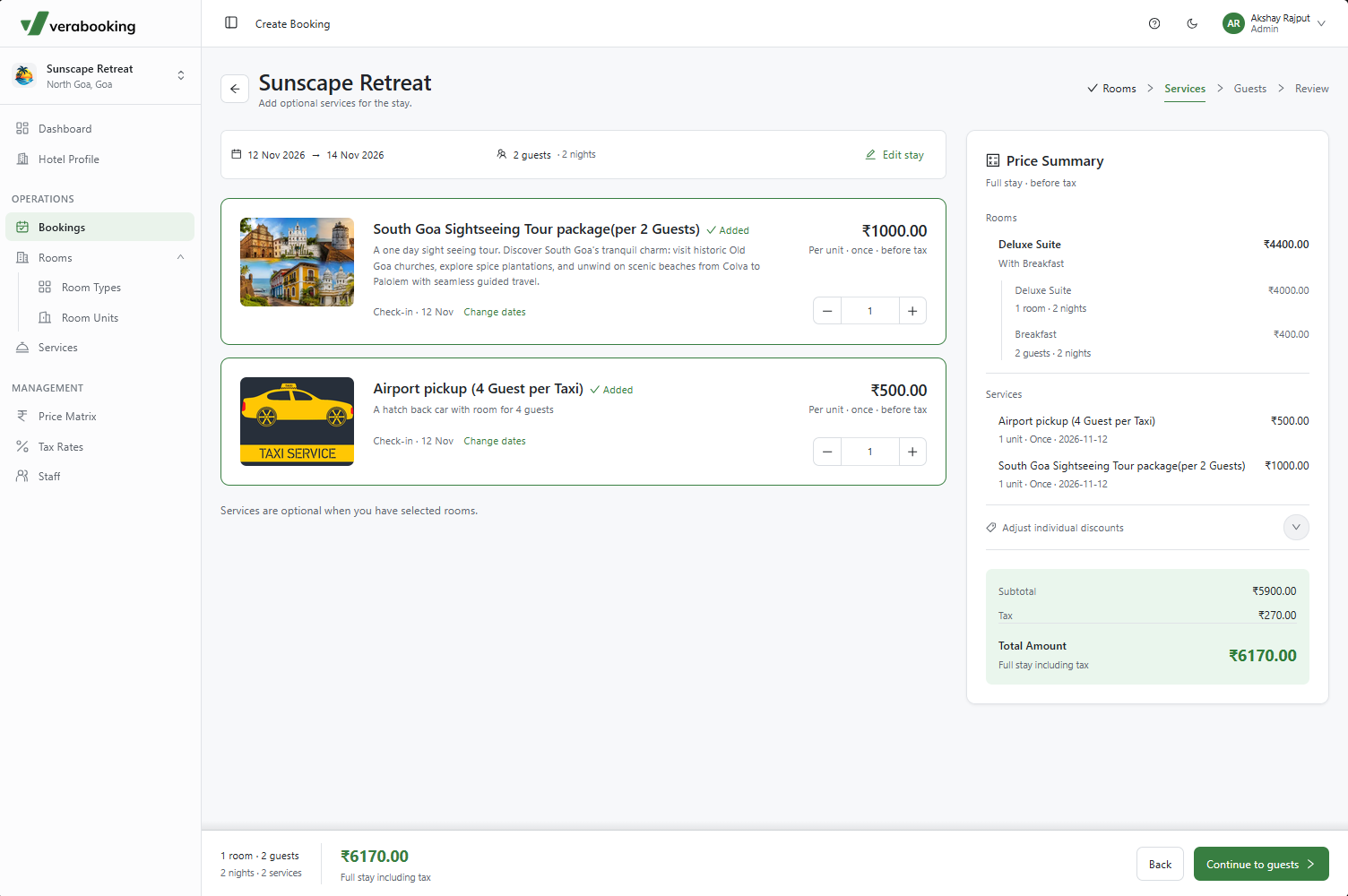
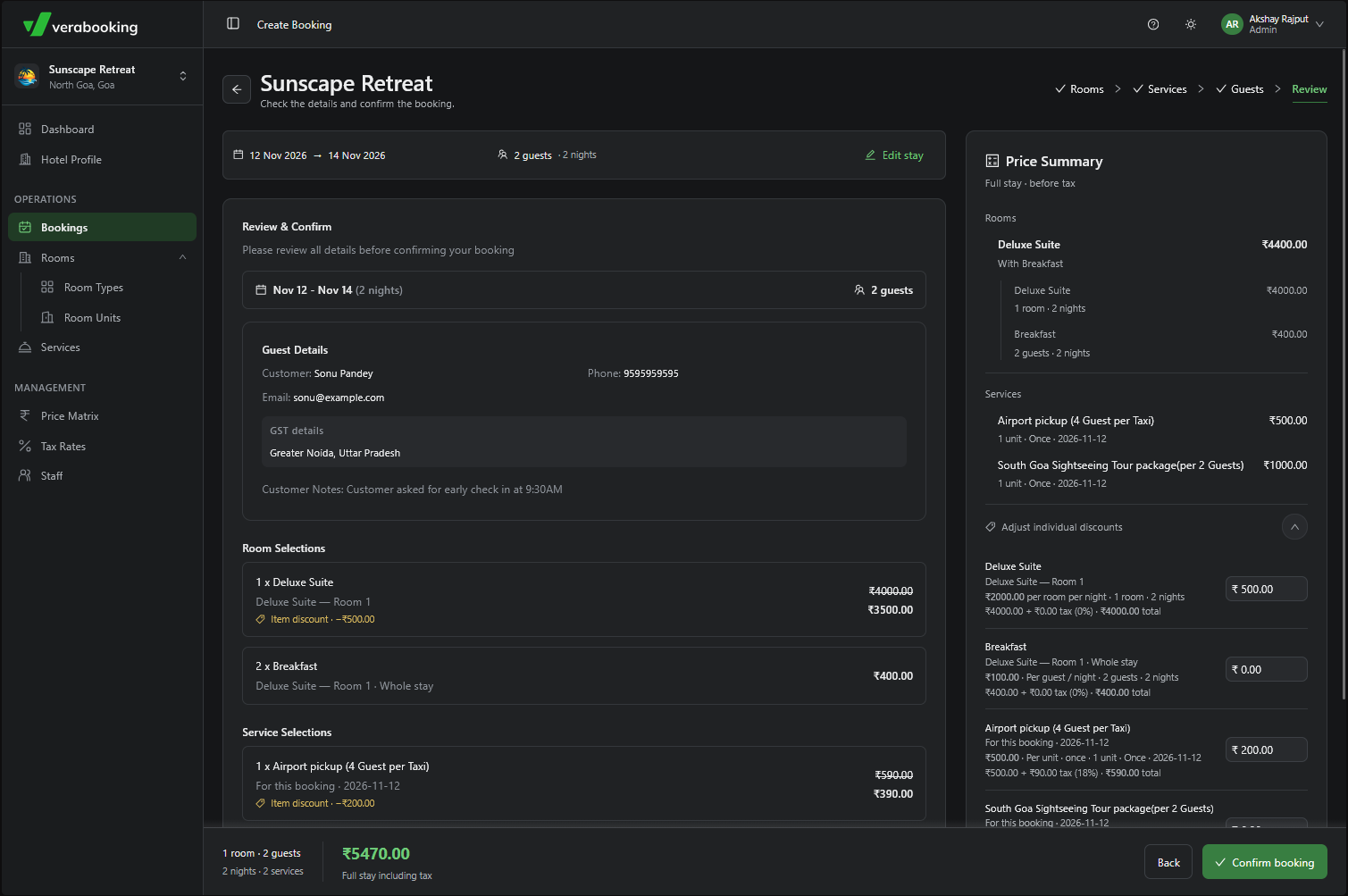
Select Continue to Guests and enter the guest details. Then choose Review booking to check the dates, rooms, guest details, services, and price. Select Confirm Booking when everything is correct.
What happens next: This action creates a draft booking, which you can share as a quote. The stay still needs to be confirmed by the guest or by your hotel.
Confirm the stay
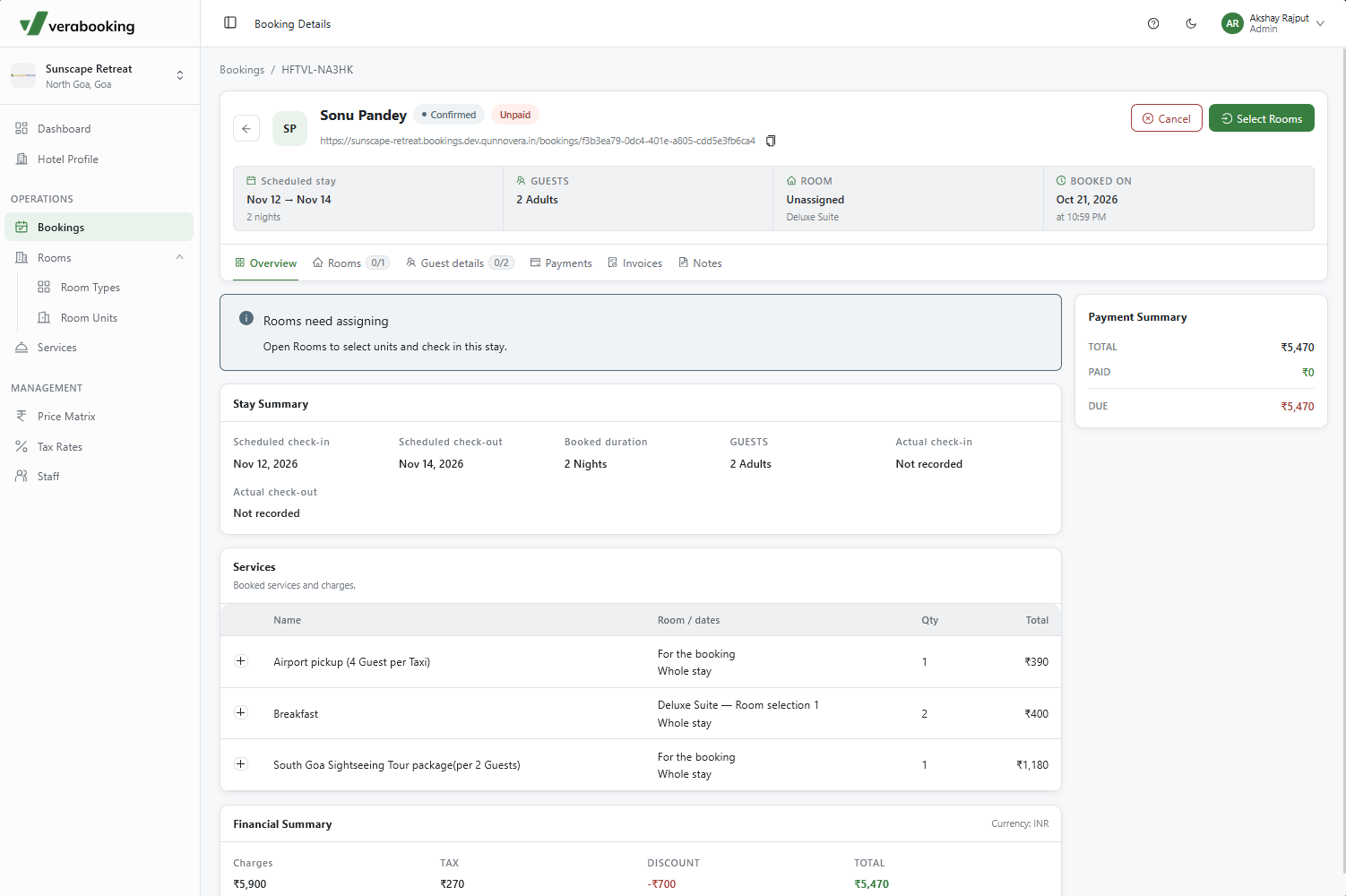
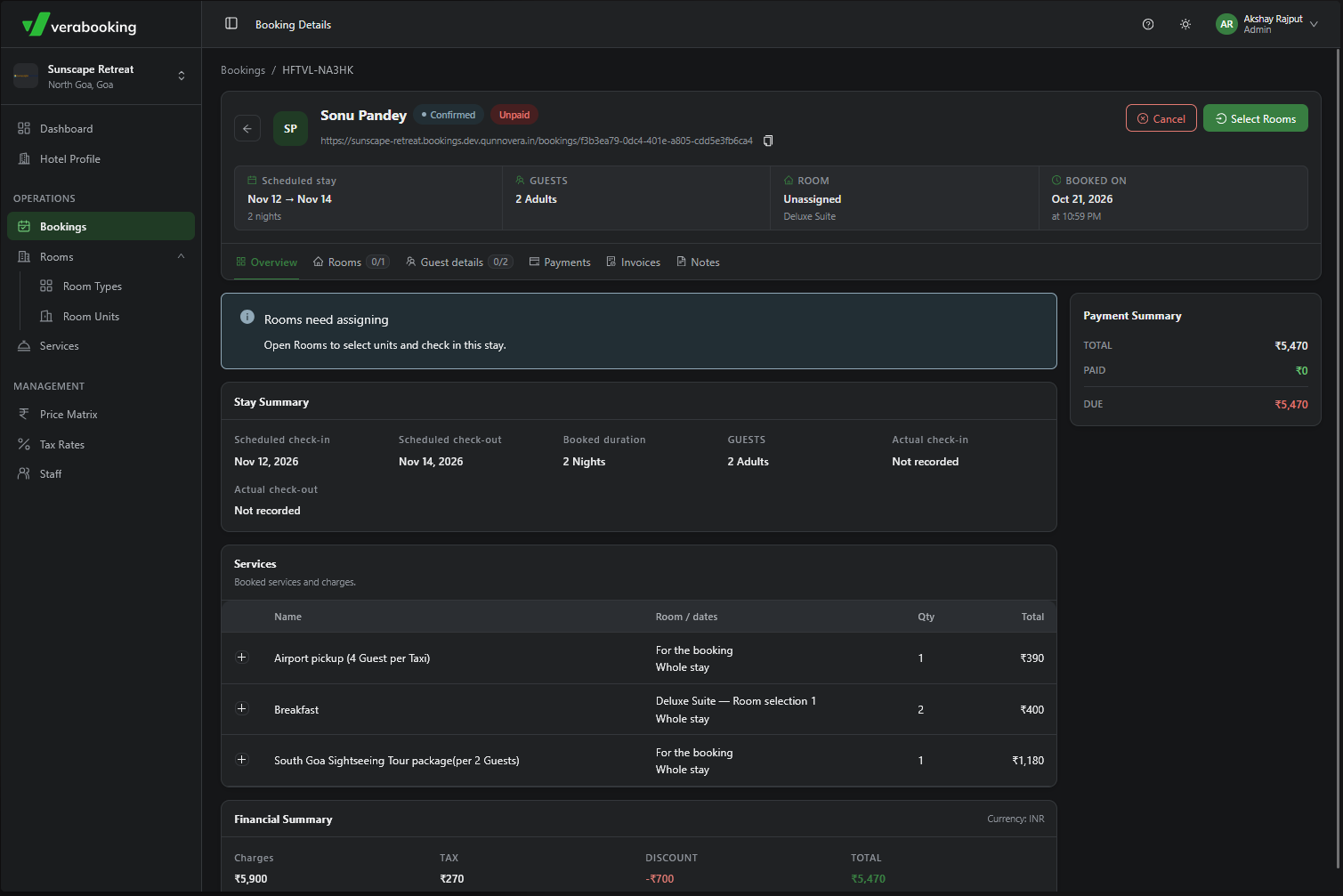
Find the draft in the Bookings dashboard and select View to open its details. From there, you have two ways to move forward:
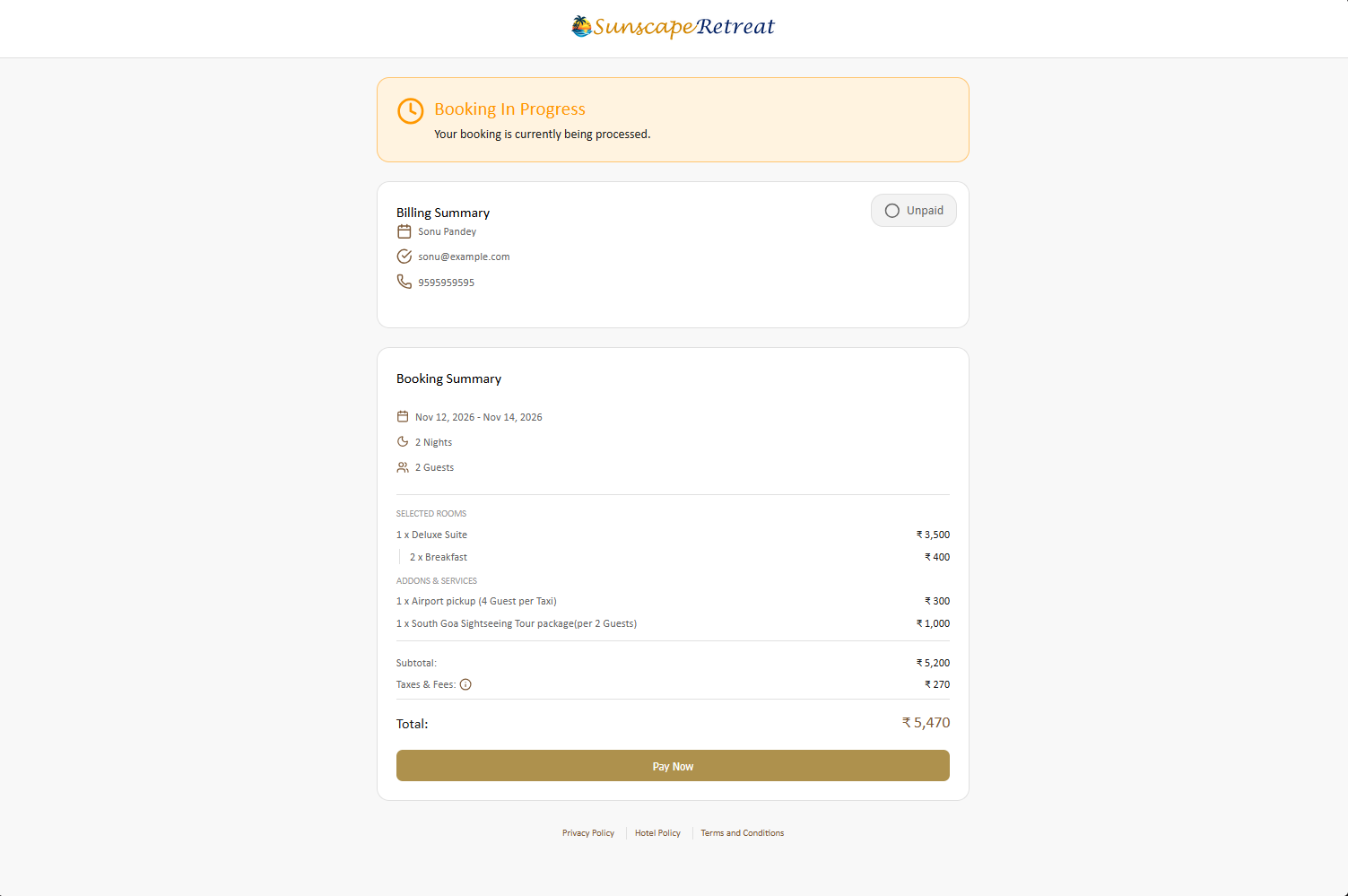
- Let the guest confirm: Share the booking link shown at the top of the details page. The guest can use it to check the booking status and make a payment to confirm the stay.
- Confirm it at the hotel: Select Hold to reserve the room inventory, then select Confirm. You can collect payment later, such as at check-in.
Check guests in and record payments
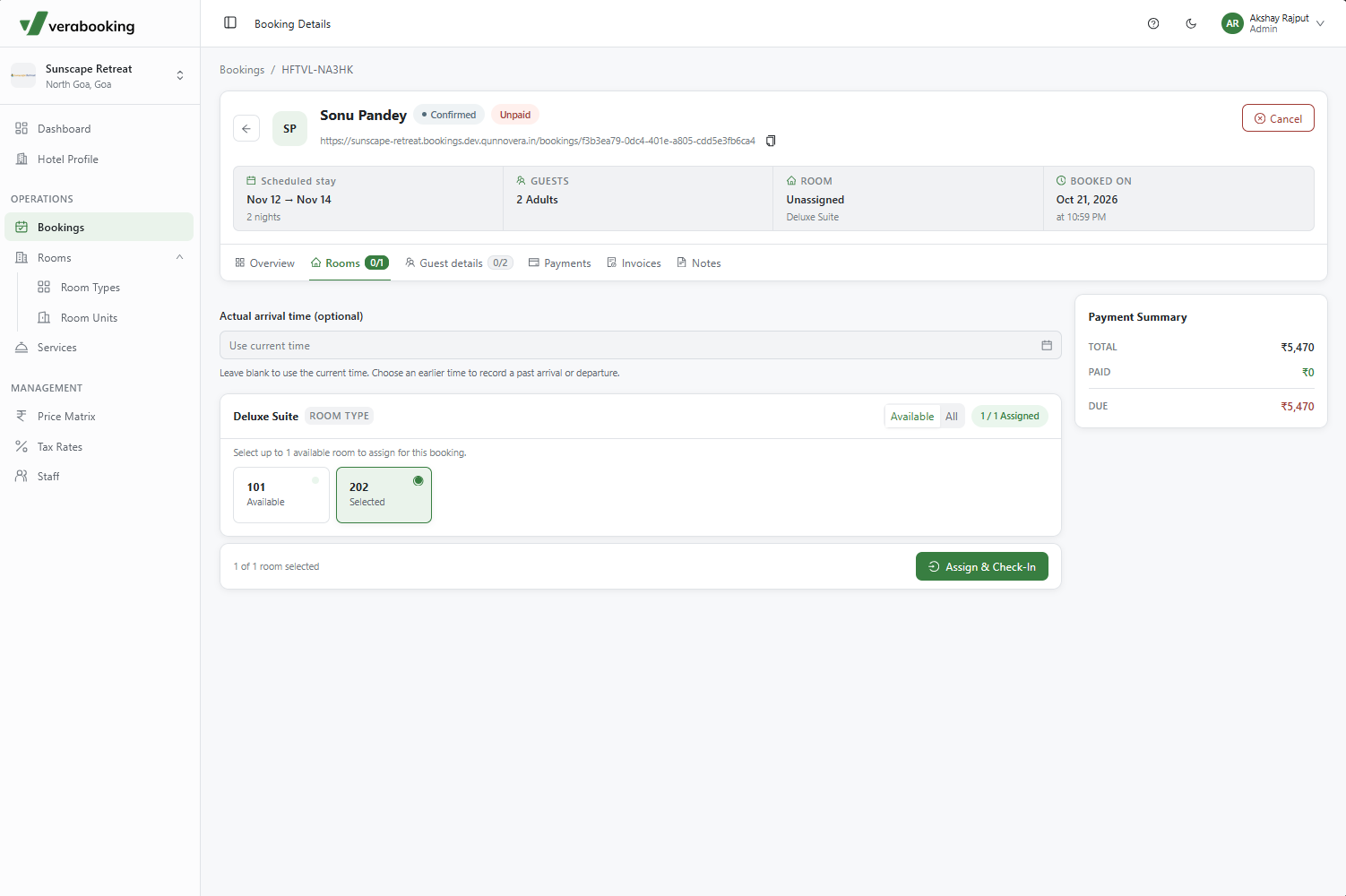
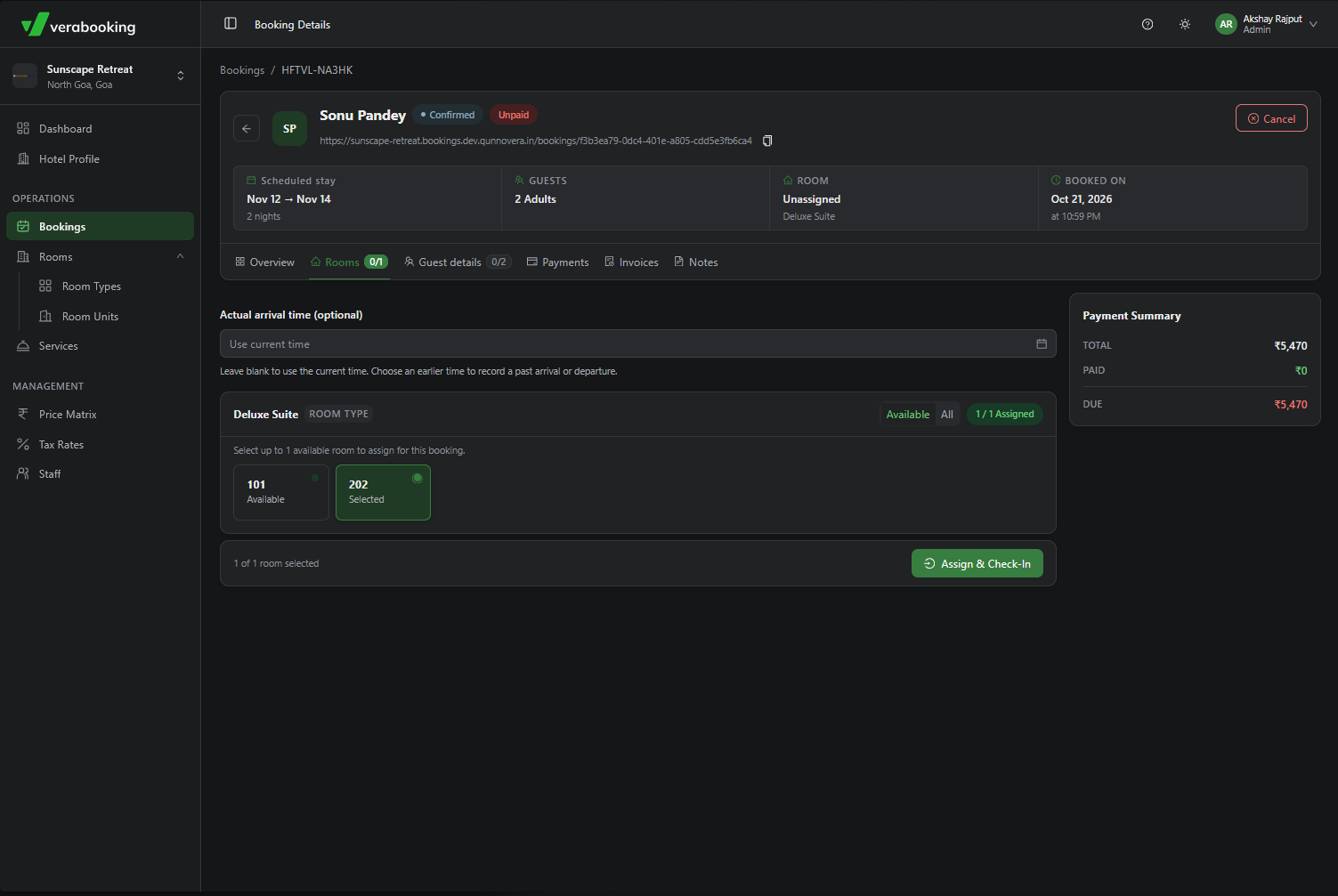
When the guests arrive, open the confirmed booking and go to Rooms. Choose the available room units for the stay, then select Assign & Check-in.
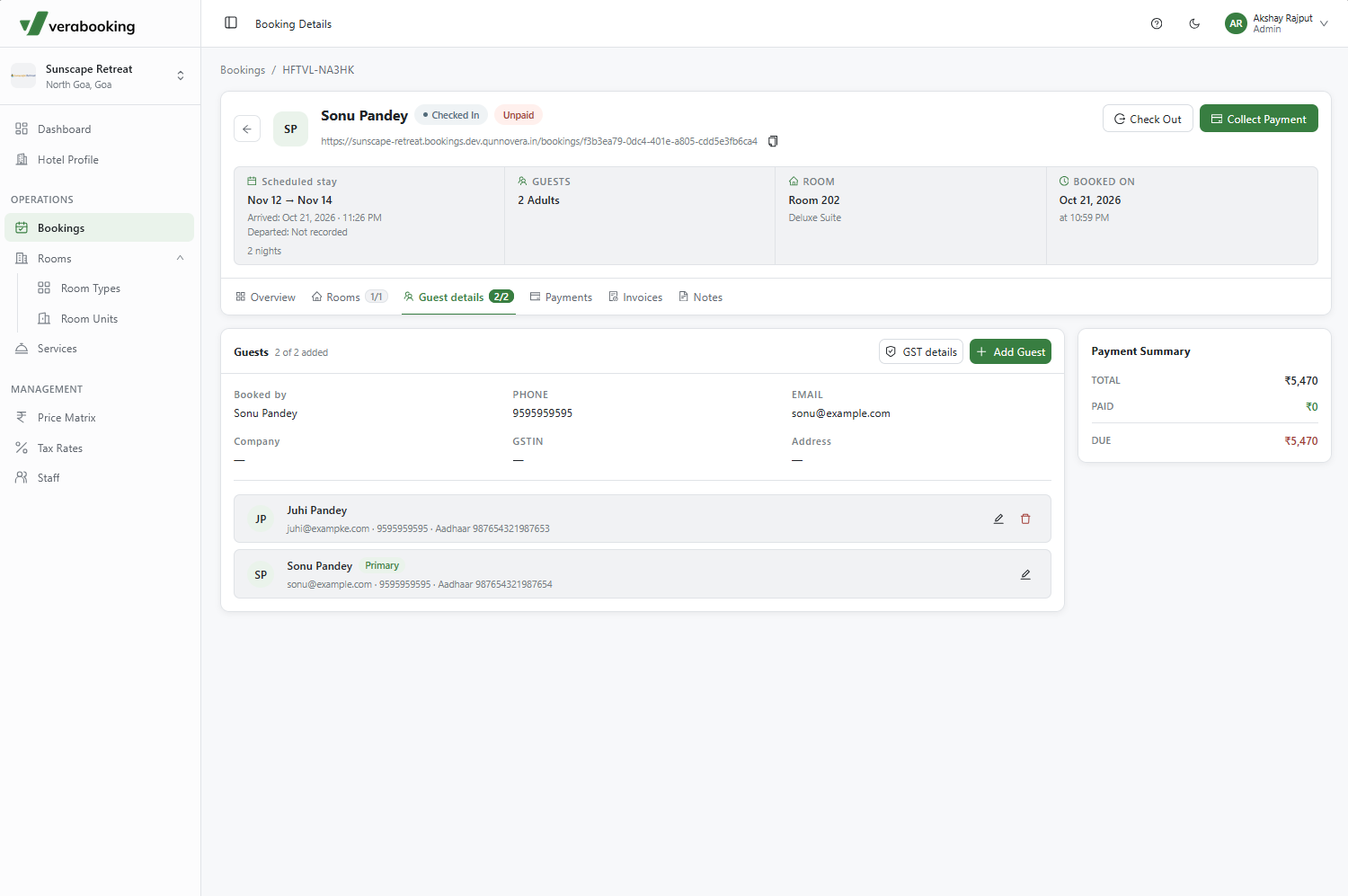
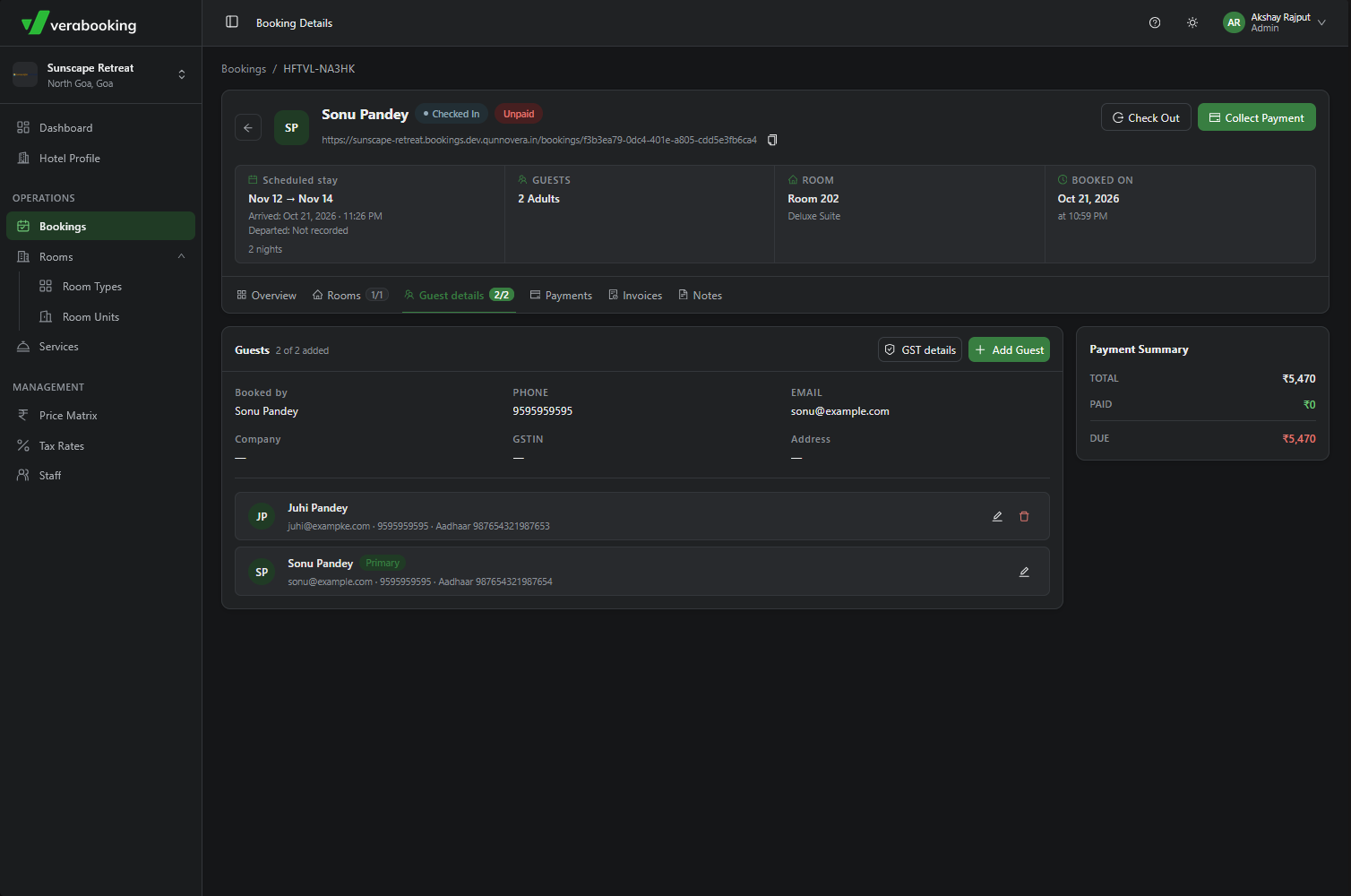
Open Guest Details and select Add Guests to enter the required information for each guest. In Payments, record any payments collected directly by the hotel. Online payments appear there automatically, so you can review them without entering them again.
Check guests out and prepare the rooms
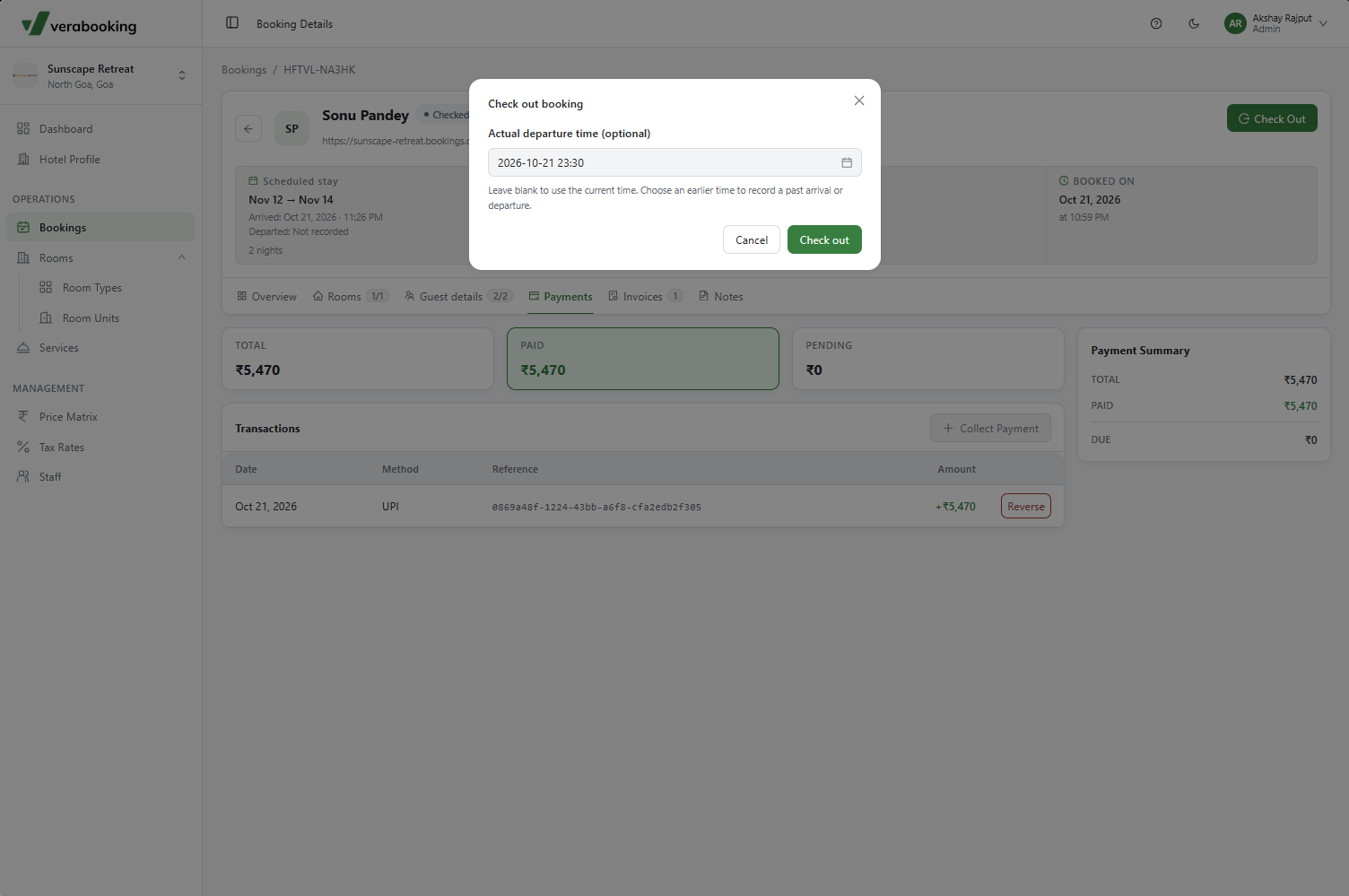
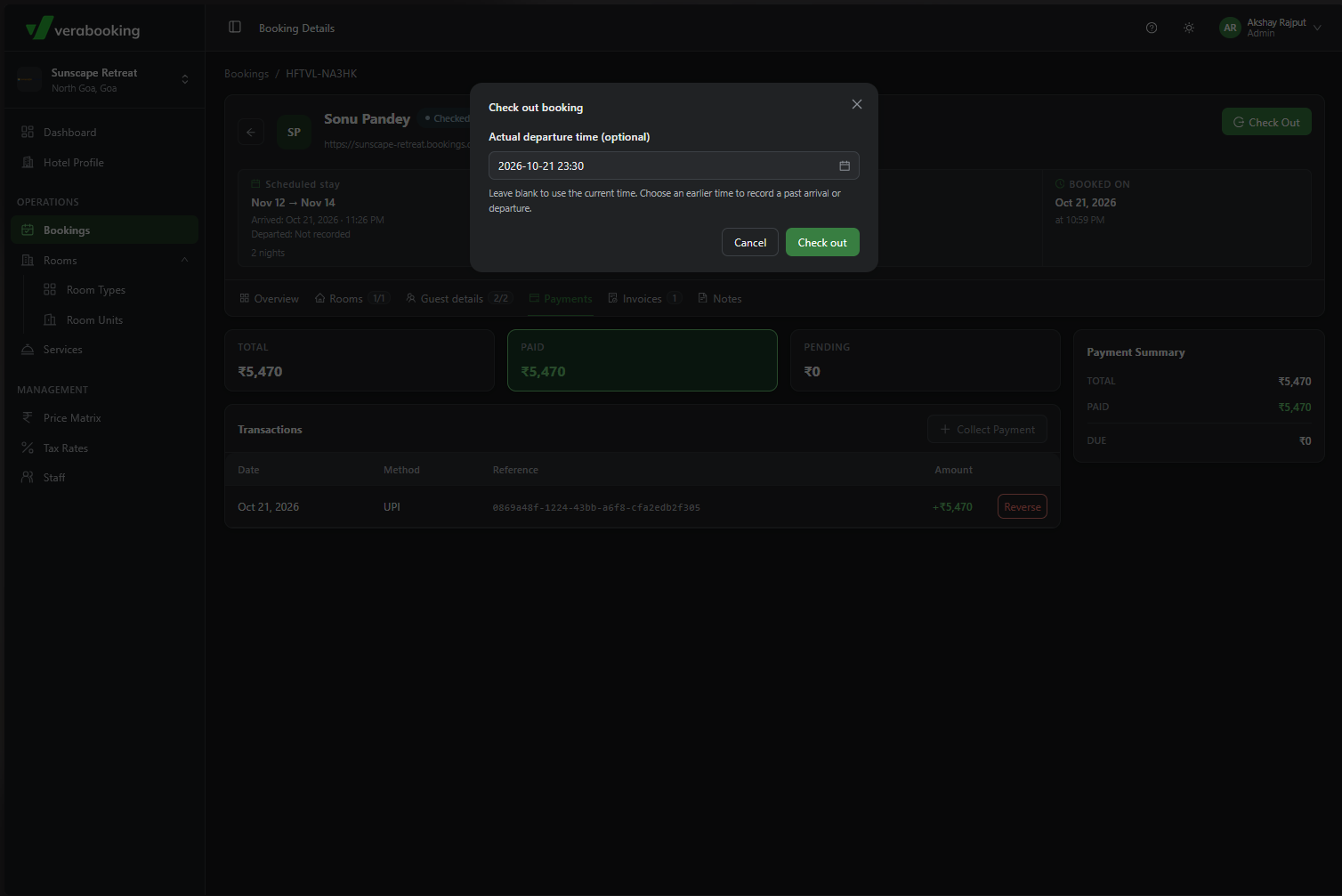
Before checkout, make sure the required guest details are complete and any outstanding payments are settled. Select Check-out, enter the actual departure time in the confirmation window, and complete the checkout.
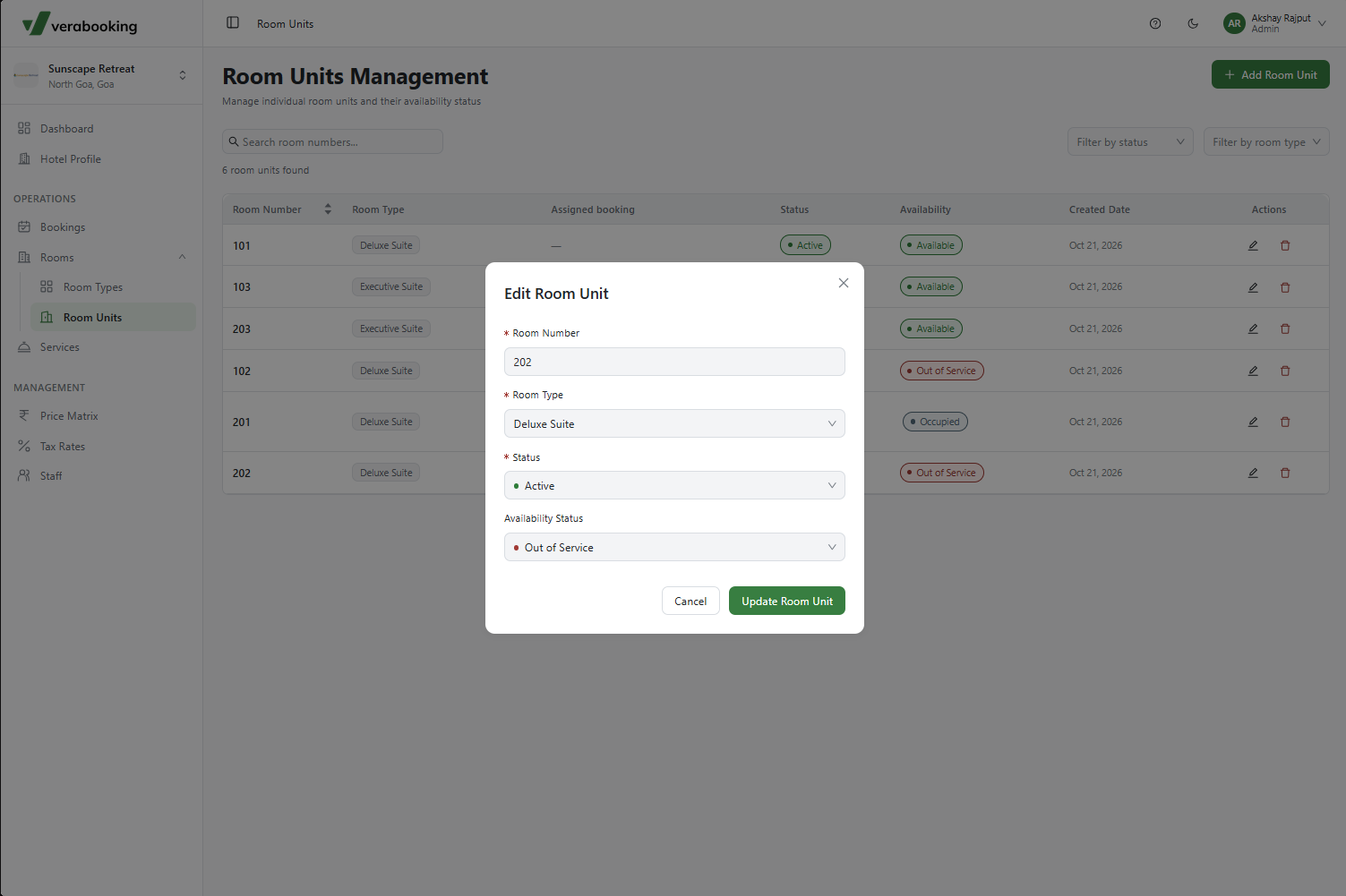
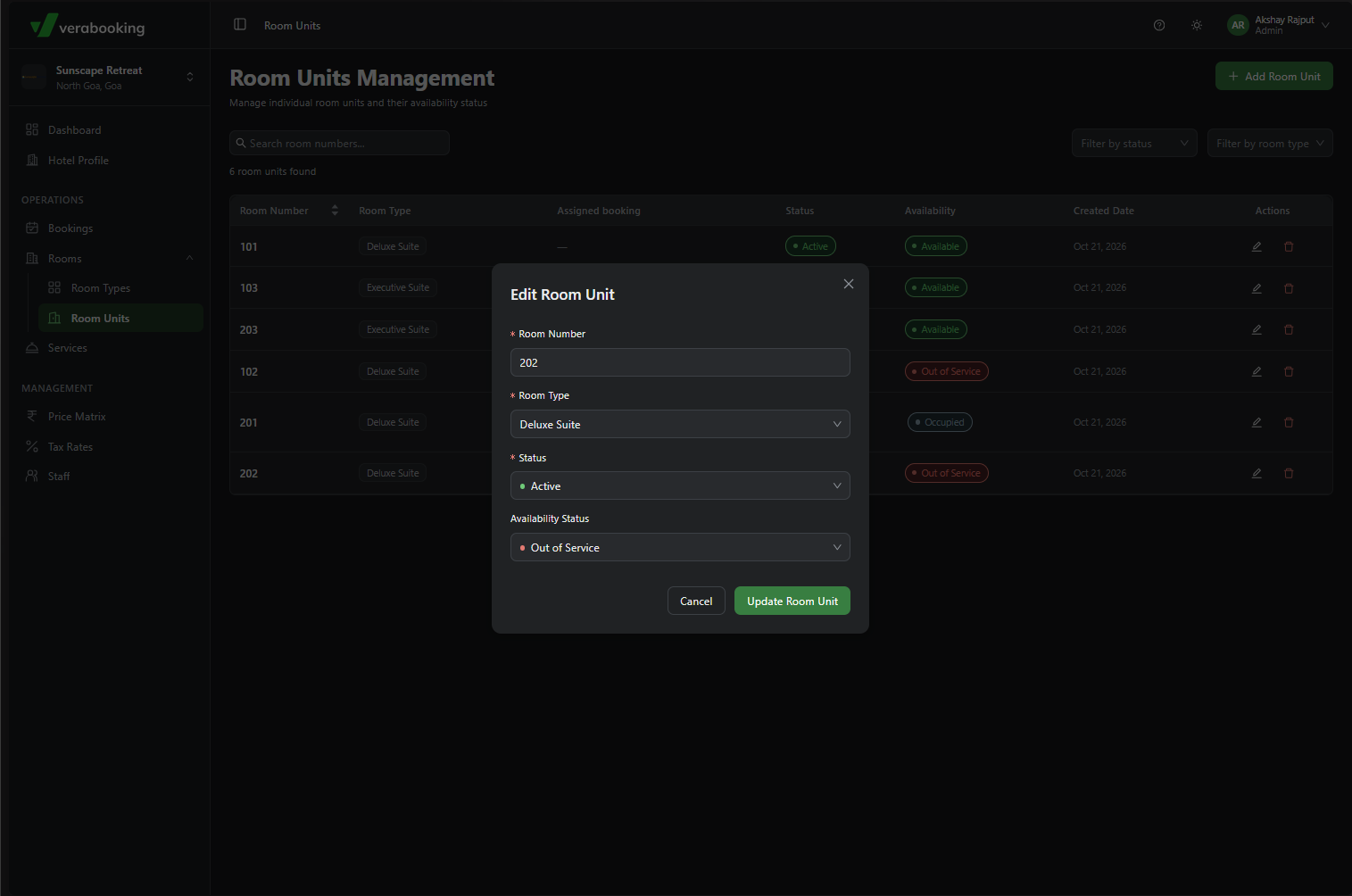
After checkout, the assigned rooms move to Out of Service so they can be cleaned. Once a room is ready for another guest, go to Rooms > Room Units and change its availability to Available. See Room Units for more about room availability.